![special-case-sl-logo.png]](https://help.seedlegals.com/hs-fs/hubfs/special-case-sl-logo.png?width=165&height=18&name=special-case-sl-logo.png)
1. What is the share issuance tool and when should I use it?
2. How to complete a share issuance
3. Legal documents required for share issuance
4. E-file SH01 form to Companies House
The Issue Shares product lets you issue new shares to team members at the price per share of your choosing and lets you pay your non-exec directors, consultants and advisors for the services they have provided with equity.
This product is intended for issuing shares to team members only. If you’re issuing shares to investors, please use one of our investment products instead and make sure you have an investment agreement in place. In the board resolution, you can specify whether the shares are being issued for services or for cash.
The Issue Shares product includes everything you need to document a share issuance properly. In your non-exec director, consultant, or advisor agreement on SeedLegals, you will have outlined that you will issue shares in tranches after services have been provided. Read more about how this works in practice in this article: Rewarding Consultants, Advisors, and Non-Executive Directors for Their Services with Equity
Note: You may also need Investor Consent if you have completed a funding round previously, more on this here: What is investor consent? When you need it, and when to offer it
Note: It is important to seek tax advice before issuing shares. Issuing shares below market value may create a tax liability and issuing shares at nominal value should generally only be done within the first few months of incorporation.
Here's the process step-by-step:
Step 1: Start Share Issue
Head over to the Cap Table> Issue Shares and hit the "New Share Issue" button.

An overview of the product will appear on the right-hand side. Once you've read that, please click "Start Now".
Note: the cost of a Share Issuance is £299+VAT. This includes all relevant documentation and e-filing to Companies House.
Step 2: Set the Terms of the Issue Shares
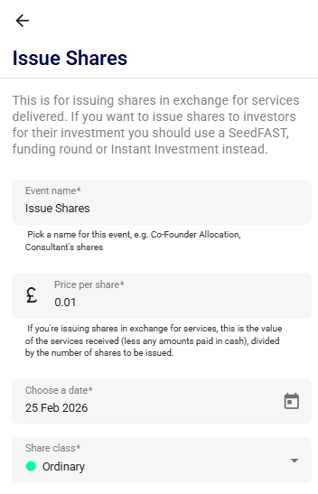
Enter the Event Name - this can be anything you wish.
Enter the price the team member will pay per share. If your company has recently incorporated, this is likely going to be nominal value, however, if you are unsure, please seek tax advice.
Choose the date of the share issuance - when do you want those shares to be issued to your co-founder or team members? This is the date that will appear on the SH01 form.
Choose the share class - what share class will you give to your co-founders and team members? This will often be the same as yours to your co-founders but it could also be Ordinary B (Non-Voting) for your team members.
Click 'Confirm'
Step 3: Add the 'New Subscriber(s)' aka Shareholders
-
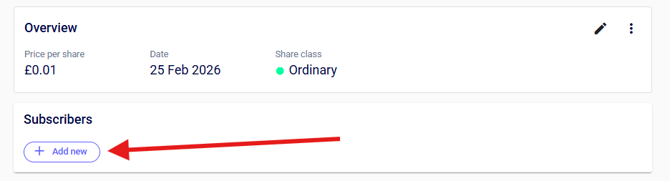
Click + Add New under the Subscribers section.
-
You'll see names of people already associated with your SeedLegals account. If the person is listed, select them.
-
If not, click + Add New Shareholder and select either Individual or Company
-
Enter their name, email address, and postal address.
-
Choose how to allocate shares: by a specific number of shares, or by percentage of equity. If you select 'a specific percentage', the platform will automatically calculate the percentage for you!
Great, you've done the most difficult part! Now you just have to create the documents and get them signed...
Step 4: Check Legal Requirements & Create Documents
-
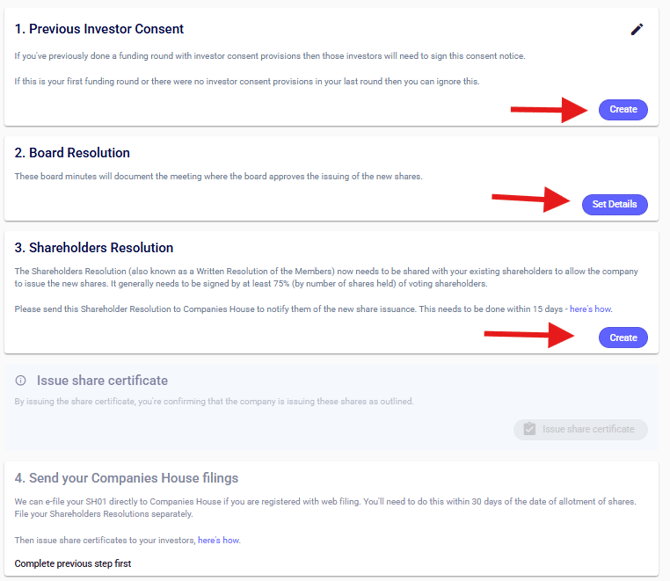
Previous Investor Consent: Check if any shareholder or investor consents are needed. Review your Shareholders’ Agreement and Articles of Association. If these are stored off-platform, check them manually with a legal professional. If you have them on SeedLegals, contact us, and we can help. If you don’t have these documents, you can skip this step.
You can find out more here: What is investor consent? When you need it, and when to offer it
-
Board Resolution (Board Minutes): This document records the board’s approval of the new share issue. First you will need to set the details - you will be asked to confirm the date of the board meeting, who chaired the meeting and whether any directors were absent. Once the terms are set, click confirm. You will then need to click Create in order to share and sign the document.
-
Shareholders’ Resolution: Click Create to generate the resolution. Share it with existing shareholders using the Share button at the top of the document. This needs to be signed by shareholders holding at least 75% of voting shares
Step 5: Issue Share Certificates
Only when all the documents have been fully signed, Click 'Issue Share Certificate(s)'
Step 6: Register the allotment on Companies House - the SH01 Form
Click E-file SH01 to Companies House and upload the Shareholders Resolution.
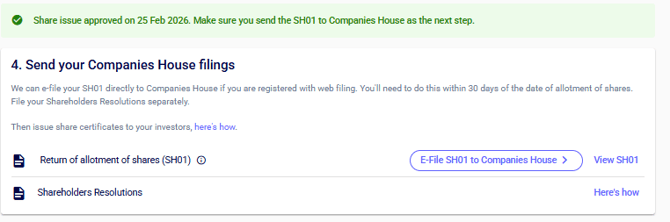
For more information on how to E-file your SH01 form, please refer to 'How to E-File an SH01 Form on the SeedLegals Platform'
Step 7: Sign and Share your new Share Certificate(s)
Click 'View share certificate' and sign them following this guide: How to Issue Share Certificates
You're all done, nice!Please note that you will need to update your Shareholder Register, although the Cap Table on SeedLegals can be downloaded as a list of shareholders, you will need to maintain a Shareholder Register offline alongside several other statutory registers. Please see our handy guide here for more information on what these need to contain