![special-case-sl-logo.png]](https://help.seedlegals.com/hs-fs/hubfs/special-case-sl-logo.png?width=165&height=18&name=special-case-sl-logo.png)
With our “Custom Groups” feature, you can now create and name custom groups, easily share multiple documents or entire folders at once, and automatically grant access to new investors in your network, without having to reshare everything manually.
Even better, when you add new investors to a custom group, they’ll instantly get access to all previously shared documents in the group’s folders. No more repetitive sharing!
Please follow these simple steps to create groups, name them, and share folders with them.
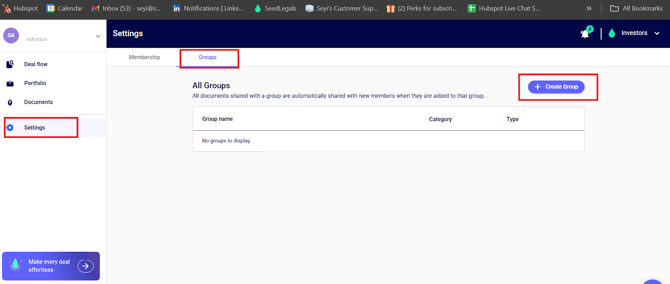
Step 1: Navigate to Settings at the bottom left corner of the navigation panel.
To create a Custom Group, first go to Settings at the bottom left corner of the page. Then click “Groups” > + Create Group.
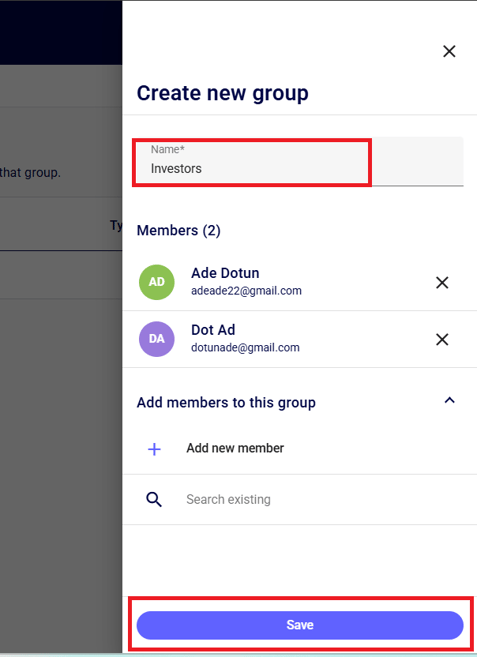
Step 2: Create the Custom Group name and start adding members.
Enter the name of the group in the bar, and start adding members by clicking their name to add them to the group and click “save”.
💡You can also create a new user by clicking on the “+ add new contact” > Individual/Company > enter their details ( name and email address/company name).
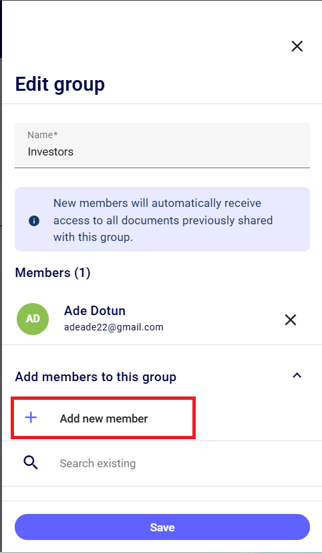
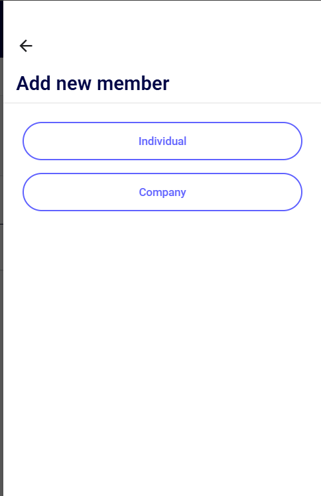
💡You can also edit a custom group to edit the name or add more group members
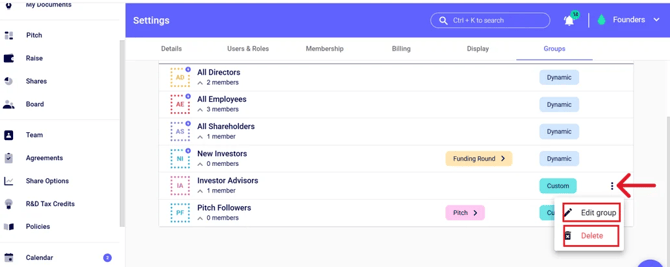
Please note that new members will automatically receive access to all documents previously shared with the group.
Step 3: Share “Deals” to Custom Groups
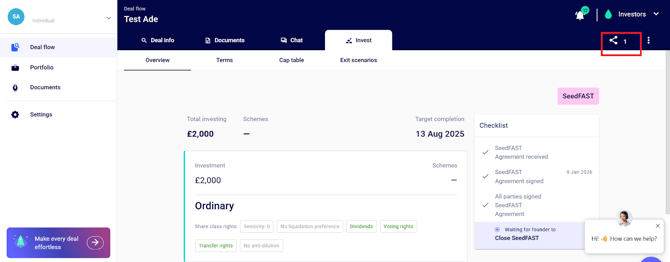
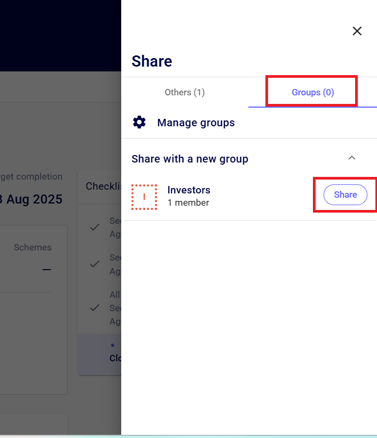
You can then share your deals to custom investor groups rather than sharing with individual investors one after the other by clicking on the share icon on the Deal Flow page > Groups
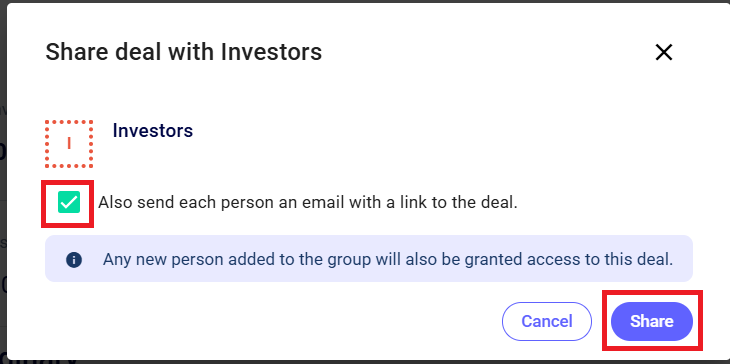
💡You can decide to email the link to the folder to each person by ticking the box as shown below.
If you have any further questions, please feel free to reach out to our team by clicking the chat icon at the bottom right corner of the screen- we’ll be happy to help!